

Prompt Registry
What is a prompt?
Section titled “What is a prompt?”A prompt is a natural-language instruction given to a generative model to direct its response or produce a desired outcome. It may include questions, commands, contextual details, few-shot examples, or partial inputs for the model to complete or extend.
In GGX, a prompt is more than the text you send — it is a registered, versioned asset made up of three parts that are stored and tracked together:
- Prompt Template — the instruction text, with placeholders for any dynamic values.
- Input Arguments — the typed inputs that fill those placeholders at runtime.
- Creation Logic — Python that prepares the arguments and fills the template before the prompt is sent to a model.
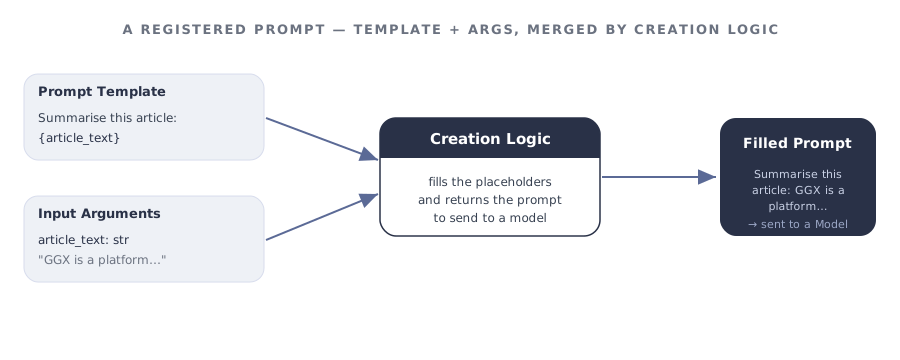
Anatomy of a prompt
Section titled “Anatomy of a prompt”| Part | What it holds | Required? |
|---|---|---|
| Prompt Template | The instruction text. Placeholders use Python-style braces, e.g. {customer_utterance}. |
required |
| Input Arguments | The typed values that replace placeholders. Each has an Alias, Type, optional flag, and default. | Optional for system-only prompts |
| Creation Logic | A Python function that formats arguments and returns the filled template. | required |
| Properties | Description, Group, Permissible Purpose, Approval Workflow, Task Type, Prompt Type. | Mostly required — see below |
| Attributes | Alias (the Python variable name pipelines call this prompt by). | required |
Adding a prompt to the registry
Section titled “Adding a prompt to the registry”The Prompt Registry is the central place where every registered prompt lives, organised into customisable groups. From here you can track, monitor, test, and create new prompts.
Click Create on the Prompt Registry page, then work through the form:
-
Name and description. Give the prompt a clear name and a plain-English description of what it does, when to use it, and when not to — it is what teammates read when deciding whether to reuse it.
-
Properties. Set the Group, Permissible Purpose, Approval Workflow, Task Type, and Prompt Type (for example, System Instruction).
Alias. required A code-safe variable name pipelines use to refer to this prompt — lowercase with underscores, no spaces.
-
Resources. Add any registered Models, Global Functions, or other assets the creation logic should be able to call.
-
Input Arguments. For each argument, set its Alias, Type, whether it is optional, and a default value.
-
Prompt Template and Creation Logic. Write the template with
{placeholder}markers, then write the Creation Logic that fills them. Use Test Code to run it against sample input before saving. -
Save. Optionally attach documentation or notes under Additional Information, then click Save. The prompt is saved as a Draft until it goes through approval.
Testing and improving a prompt
Section titled “Testing and improving a prompt”A prompt is only as good as the outputs it produces against the inputs you actually expect. GGX has dedicated features for prompt iteration inside the Prompt Registry page itself, plus the same Bulk Simulation that every other registered asset uses.
Analyze Prompt
Section titled “Analyze Prompt”The Analyze Prompt button at the bottom of the Prompt Template editor scores your prompt against a set of quality dimensions and returns an estimated prompt score (e.g. 75%). Alongside the score, GGX lists Findings — specific gaps in the prompt that, if addressed, would raise the score. For each dimension, GGX either lists one or more Findings with a short explanation, or shows “Nothing was found” if the dimension passes.
The dimensions GGX currently evaluates include:
- Bias — e.g. “Minimal / No Fair Lending Instructions in the prompt” — flagging missing guidance for the model to remain unbiased, fair, or avoid perpetuating stereotypes.
- Toxicity — e.g. “Minimal / No Code of Conduct instructions in the prompt” — flagging missing guardrails against toxic, biased, or harmful output.
- Logical Progression and Coherence — whether the prompt’s instructions follow a clear, step-by-step structure.
- Examples Quality — e.g. “Limited Examples in the prompt” or “Limited Diversity in the prompt” — flagging when there are too few examples, or when the examples don’t reflect the range of real inputs the model will see.
- Clarity — whether the prompt’s instructions are unambiguous.
- Grammar — e.g. “Subject-Verb Disagreement” — flagging grammatical issues in the prompt that could confuse the model.
Use Analyze Prompt as your iteration loop — change the template, click Analyze again, watch the score move.
Improve with AI
Section titled “Improve with AI”The Improve with AI button uses the Findings surfaced by Analyze Prompt to generate suggested edits to the template — adding missing safety/bias guidance, sharpening unclear sections, restructuring for coherence. Review each suggestion, adapt it to your context, then re-run Analyze Prompt to confirm the score has improved before saving.
Test the creation logic
Section titled “Test the creation logic”If your Creation Logic does anything non-trivial (formats a list of intents, fetches dynamic context, applies conditional logic), use Test Code at the bottom of the Creation Logic editor to run it against sample arguments and inspect the filled template before saving.
Bulk simulation through a pipeline
Section titled “Bulk simulation through a pipeline”When the prompt is wired into a pipeline, Bulk Simulation runs that pipeline over an entire dataset of inputs and stores every filled prompt and model response — the right tool for measuring tone consistency, safety, output-format adherence, and edge-case behaviour at scale.
A worked example: Customer Intent Classification
Section titled “A worked example: Customer Intent Classification”Registering an intent-classification prompt for a banking assistant. The form fields:
| Field | Value |
|---|---|
| Name | Customer Intent Classification |
| Alias | customer_intent_classification_prompt |
| Prompt Type | System Instruction |
| Task Type | Classification |
| Input Arguments | user_message (String, required) |
The template uses two placeholders — the customer’s query, and a list of intents that the creation logic formats from a Python list:
You are a digital assistant for BankX. Classify the customer'squery into one of the predefined intents.
{list_of_intents}
OUTPUT FORMAT:{"classified_intent": "str"}
Customer query:{customer_utterance}
Creation Logic formats the intent definitions and fills both placeholders:
intent_definitions = [    {"Intent": "ACTIVATE CARD",     "Definition": "Request to activate a newly issued card",     "Examples": ["How do I activate my new debit card?",                  "Activate my credit card now."]},    {"Intent": "BLOCK CARD",     "Definition": "Request to block a lost, stolen, or compromised card",     "Examples": ["Block my credit card immediately.",                  "I lost my debit card, can you block it?"]},    # ...]
def get_intent_info(data_list):    """Format intent definitions into readable text."""    lines = []    for i, item in enumerate(data_list, 1):        lines.append(f"#### {i}. {item['Intent']}")        lines.append(f"- Definition: {item['Definition']}")        for ex in item["Examples"]:            lines.append(f"  • {ex}")        lines.append("")    return "\n".join(lines)
return prompt.format(    customer_utterance=user_message,    list_of_intents=get_intent_info(intent_definitions),)
Once saved, a pipeline calls the prompt by its alias:
result = customer_intent_classification_prompt(user_message=user_input)intent = result["classified_intent"]Capabilities unlocked by registration
Section titled “Capabilities unlocked by registration”Registering a prompt — rather than hard-coding it in a script — is what turns it into a governed, reusable asset:
| Capability | What you get |
|---|---|
| Change tracking | Every modification to a draft is snapshotted in Change History; approved versions are locked. |
| Purpose enforcement | Automatic detection of Permissible Purpose violations when the prompt is used downstream. |
| Testing & evaluation | Analyze Prompt, Improve with AI, and Bulk Simulation through a pipeline. |
| Reusability | Reuse across pipelines, with visibility through Lineage Tracking. |
| Auditable path to production | A transparent, fully auditable journey from Draft through Approval to use in pipelines. |
| Executable artifacts | Extract ready-to-productionise artifacts straight from the Registry. |