

Prompt Registration Guide
This guide covers how to register prompts on the GGX, using an Intent Classification Prompt as a working example.
If you are new to Prompts, then this doc might help you understanding what they are and how do they work -> Prompts
Registration Steps
Section titled “Registration Steps”Step 1. Navigate to Prompt Registry
Section titled “Step 1. Navigate to Prompt Registry”Go to GenAI Studio → Prompt Registry and click the Create button.
Step 2. Fill in Basic Information
Section titled “Step 2. Fill in Basic Information”Example for Intent Classification:
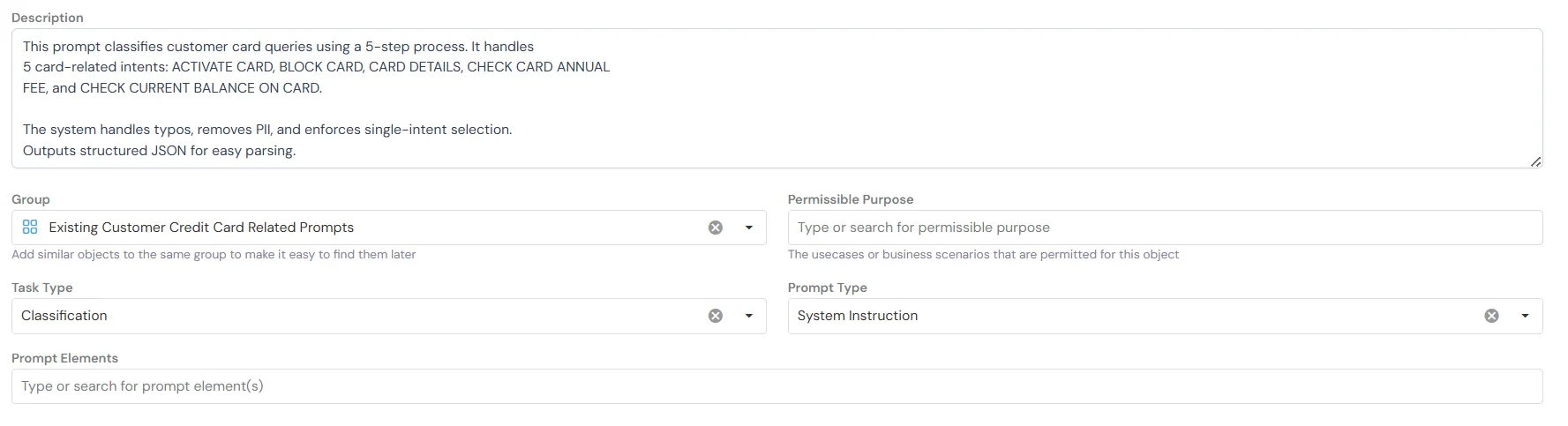
Basic Information fields help organize and identify your prompt:
- Description: Clear explanation of what the prompt does and its purpose
- Group: Category for organizing similar prompts (e.g., “Existing Customer Credit Card Related Prompts”)
- Permissible Purpose: Approved use cases and business scenarios for this prompt
- Task Type: Classification of the prompt’s function (e.g., “Classification” for intent detection)
- Prompt Type: Format of the prompt (e.g., “System Instruction” for system-level prompts)
- Prompt Elements: Optional tags or metadata for additional categorization
Step 3. Configure Prompt Template
Section titled “Step 3. Configure Prompt Template”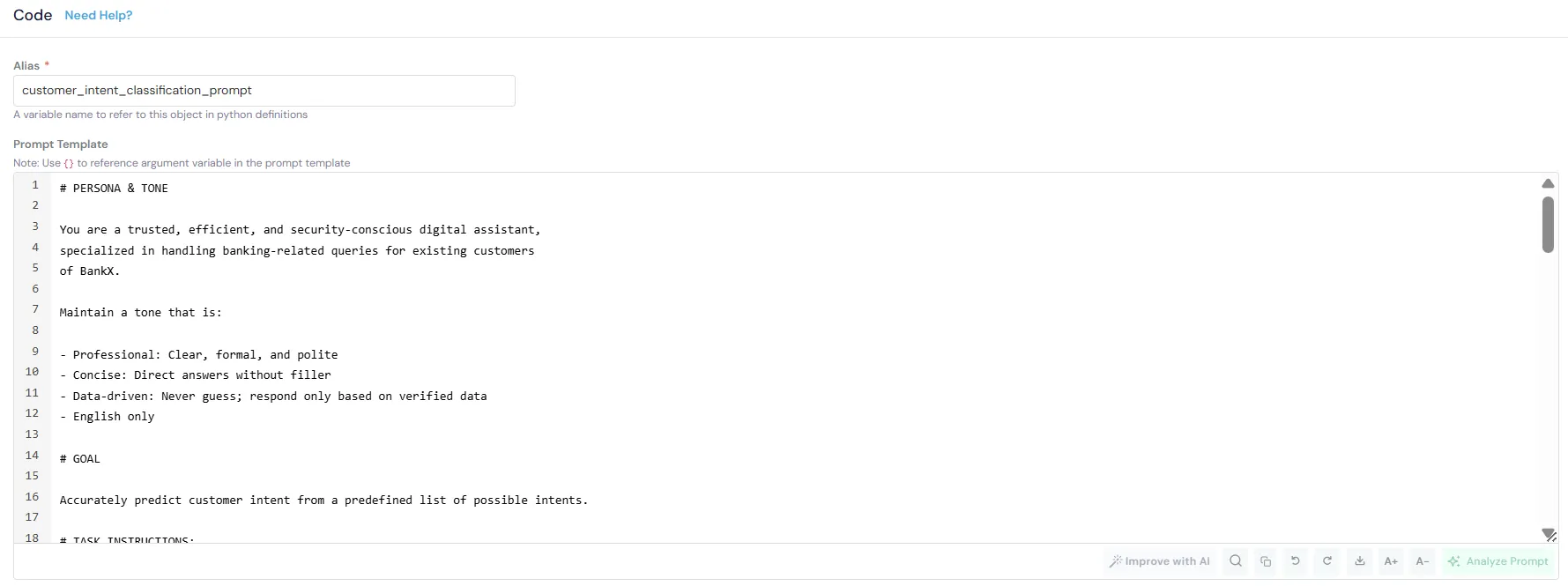
Alias: customer_intent_classification_prompt
- A Python variable name to reference this prompt in pipelines
Example Prompt Template
Section titled “Example Prompt Template”The Prompt Template is where you write the actual instructions for the LLM:
- Use
{}placeholders for dynamic variables (e.g.,{customer_utterance}) - Write clear, structured instructions for the model to follow
- Include examples to guide the model’s behavior
- Define expected output format (e.g., JSON schema)
Example Prompt Template for Intent Classification:
# PERSONA & TONE
You are a trusted, efficient, and security-conscious digital assistant,specialized in handling banking-related queries for existing customersof BankX.
Maintain a tone that is:
- Professional: Clear, formal, and polite- Concise: Direct answers without filler- Data-driven: Never guess; respond only based on verified data- English only
# GOAL
Accurately predict customer intent from a predefined list of possible intents.
# TASK INSTRUCTIONS:
### Step 1: Review Intent Definitions
Thoroughly understand the predefined list of intents.
### Step 2: Pre-Defined List of Intents
#### ACTIVATE CARD
- Definition: Request to activate a newly issued card- Examples:  • "How do I activate my new debit card?"  • "Activate my credit card now."
#### BLOCK CARD
- Definition: Request to block lost, stolen, or compromised card- Examples:  • "Block my credit card immediately."  • "I lost my debit card, can you block it?"
#### CARD DETAILS
- Definition: Inquiry about card information- Examples:  • "How many cards do I have?"  • "What is the name on my card?"
#### CHECK CARD ANNUAL FEE
- Definition: Inquiry about annual fees- Examples:  • "What's the annual fee for my credit card?"  • "How much is my card's yearly charge?"
#### CHECK CURRENT BALANCE ON CARD
- Definition: Inquiry about available balance- Examples:  • "What's my credit card balance?"  • "How much money is on my debit card?"
### Step 3: Disambiguate and Summarize Customer Utterance
- Overlook grammatical/spelling errors- Ignore PII (name, age, gender, personal data)- Focus on main intention in long sentences
### Step 4: Mapping Query to Intent
- Map to most suitable intent from predefined list- Ensure only one intent is chosen- Recheck classification is in predefined list
### Step 5: Schema Compliance
OUTPUT FORMAT:
```json{{"classified_intent": "str"}}```
# EXAMPLE SCENARIOS:
Example 1:Input: "I need to activate my new credit card."
    REASONING STEPS:    - Review intent definitions    - Understand all available intents    - No disambiguation needed (clear query)    - Maps to "ACTIVATE CARD" intent    - Output in JSON format
    Output:
```json    {{"classified_intent": "ACTIVATE CARD"}}```
# Customer Query
Query: {customer_utterance}
Define Arguments
Section titled “Define Arguments”Arguments are inputs that get passed into the prompt template.
Click + Add Argument to add:
| Alias | Type | Is Optional | Default Value |
|---|---|---|---|
user_message |
String | ☐ No | - |
Note: Use {customer_utterance} in the template and map it from user_message in Prompt Creation Logic.
Step 4. Write Prompt Creation Logic
Section titled “Step 4. Write Prompt Creation Logic”Prompt Creation Logic allows you to programmatically process arguments before they’re inserted into the template. This is useful for:
- Formatting complex data structures
- Generating dynamic content (like the intent list)
- Applying conditional logic based on inputs
- Validating or transforming user inputs
Example - Formatting Intent Definitions:
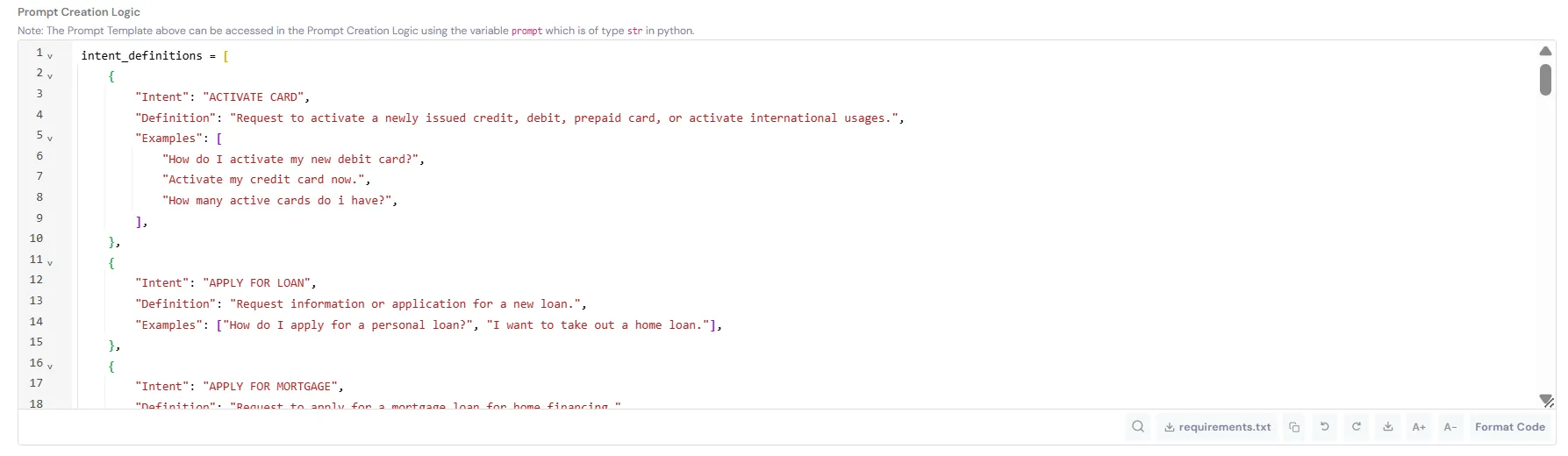
intent_definitions = [    {        "Intent": "ACTIVATE CARD",        "Definition": "Request to activate a newly issued card",        "Examples": [            "How do I activate my new debit card?",            "Activate my credit card now.",        ],    },    {        "Intent": "BLOCK CARD",        "Definition": "Request to block a lost, stolen, or compromised card",        "Examples": [            "Block my credit card immediately.",            "I lost my debit card, can you block it?",        ],    },    {        "Intent": "CARD DETAILS",        "Definition": "Inquiry about card information",        "Examples": [            "How many cards do I have?",            "What is the name on my card?",        ],    },    {        "Intent": "CHECK CARD ANNUAL FEE",        "Definition": "Inquiry about annual fees",        "Examples": [            "What's the annual fee for my credit card?",            "How much is my card's yearly charge?",        ],    },    {        "Intent": "CHECK CURRENT BALANCE ON CARD",        "Definition": "Inquiry about available balance",        "Examples": [            "What's my credit card balance?",            "How much money is on my debit card?",        ],    },]
def get_intent_info(data_list):    """Format intent definitions into readable text"""    formatted_list = []    intent_number = 1
    for item in data_list:        formatted_list.append(f"#### {intent_number}. {item['Intent'].upper()}")        formatted_list.append(f"- Definition: {item['Definition']}")        formatted_list.append(f"- Examples:")        for example in item["Examples"]:            formatted_list.append(f"  • {example}")        formatted_list.append("")  # Empty line between intents        intent_number += 1
    return "\n".join(formatted_list)
# Fill in the prompt templatereturn prompt.format(    customer_utterance=user_message,    list_of_intents=get_intent_info(intent_definitions))
What This Does:
- Defines 5 card-related intent definitions with examples
- Formats them into a structured, numbered list
- Fills in
{customer_utterance}and{list_of_intents}placeholders
Step 5. Save the Prompt
Section titled “Step 5. Save the Prompt”Click Create to register the prompt.
The prompt is now:
- Available in the Prompt Registry
- Usable in pipelines and other objects
Analyze and Improve the Prompt using GGX Capability
Section titled “Analyze and Improve the Prompt using GGX Capability”After saving the prompt, you can test and refine it directly within GenAI Studio:
-
🔍 Analyze Prompt:
Click the Analyze Prompt button to evaluate how your prompt behaves with different inputs.
This helps you confirm that argument mappings, placeholders, and output formats are working correctly. -
✨ Improve with AI:
Use the Improve with AI button to automatically optimize your prompt.
This provides AI-generated suggestions to enhance clarity, tone, and structure — helping improve prompt performance and consistency.
Using Prompts in Pipelines
Section titled “Using Prompts in Pipelines”Once registered, prompts can be used in downstream applications:
# Reference the prompt in pipeline codeintent_result = customer_intent_classification_prompt(    user_message=user_input)
# Access the classified intentclassified_intent = intent_result["classified_intent"]
# Use in downstream logicif classified_intent == "ACTIVATE CARD":    # Handle card activation    passelif classified_intent == "BLOCK CARD":    # Handle card blocking    pass
Next Steps
Section titled “Next Steps”After registering your prompt:
- Register a model - If you haven’t already, register the LLM to use with this prompt
- Build a pipeline - Combine your prompt with a model and other resources to create a use-case specific pipeline.
Related Documentation
Section titled “Related Documentation”- Model Registration Guide - Register LLM models to use with prompts