

Create from scratch
Build the logic directly in GGX with the Python Function Editor. A transparent, white-box approach: every component is registered inside GGX and stitched together, so each can be independently tested, validated, and debugged.
A pipeline is how you turn individual building blocks into a working GenAI application in GGX. It wires reusable components — Models, RAGs, Prompts, Guardrails, and even other pipelines — together with a piece of orchestration code, then takes an input, runs it through that logic, and returns a generated or predicted output.
Consider an IVR (Interactive Voice Response) assistant that automates customer support calls. Rather than building it as one large block of logic, you compose it from two smaller, reusable sub-pipelines.
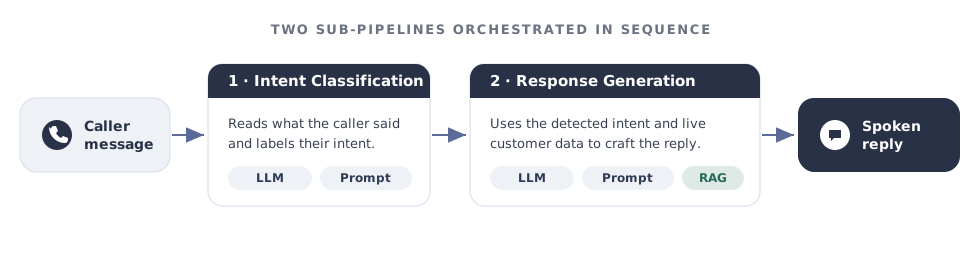
The IVR pipeline simply orchestrates the two in order:
Because each sub-pipeline is registered on its own, you can reuse it elsewhere — the same Intent Classification sub-pipeline could power a chat widget or an email-triage tool.
Every pipeline in GGX is one of three types. Choosing the right one is the first real decision you make when registering — it determines how the pipeline handles memory and what shape its output takes.
Stateful Best for conversations, assistants, and multi-turn support.
history and context across turns{"output": ..., "context": ...}Example: a support chatbot that recalls earlier messages.
Stateless Best for one-shot generative tasks — summarization, drafting, extraction.
Example: a pipeline that summarizes a document in a single pass.
Fixed labels Best for sorting an input into a known category — sentiment, intent, routing.
contextpositiveExample: a pipeline that labels a review as positive or negative.
Regardless of type, every pipeline has the same three-part shape: it receives inputs, runs scoring logic that draws on registered resources, and returns an output.
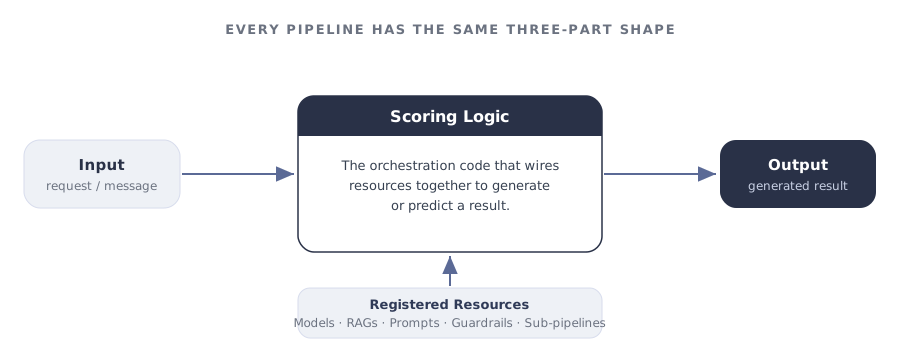
The Pipeline Registry is the central place where all registered pipelines live, organized into customizable groups. From here you can track, monitor, test, and create pipelines. There are two ways to add one:
Create from scratch
Build the logic directly in GGX with the Python Function Editor. A transparent, white-box approach: every component is registered inside GGX and stitched together, so each can be independently tested, validated, and debugged.
Connect an external agent
Integrate a pipeline already running elsewhere through its API. A black-box approach where the agent’s internals are abstracted away and interaction is limited to invoking it and consuming its outputs.
Click Create on the Pipeline Registry page, then work through the registration form:
Name and description. Give the pipeline a clear name, then a plain-English description of what it does, when to use it, and when not to — it is what teammates read when deciding whether to reuse it. Under Add Additional Details, set the Group, Permissible Purpose, and metadata like Usecase Type and Task Type.
Alias. required A code-safe variable name other pipelines use to refer to this one — lowercase with underscores, no spaces. For our running example: card_assistant.
Input type. Choose how the logic is supplied:
Pipeline, interaction, and context type. These three move together:
TypedDict[{'role': str, 'content': str}].context carried between turns, e.g. dict[str, str].Config, resources, and model file. Attach what the logic needs:
Write the scoring logic. In the editor, write the Python that ties everything together and returns the result. Use Format Code to tidy it and Test Code to run it against sample input before saving.
Finish registration. Optionally add starting examples for human-in-the-loop testing and notes under Additional Information, then click Create. The pipeline is saved as a Draft until promoted.
When you write scoring logic for a chat pipeline, several variables are provided automatically — you do not need to declare them.
| Variable | Type | What it holds |
|---|---|---|
user_message |
str |
The current message from the user. |
history |
list[TypedDict[{'role': str, 'content': str}]] |
All previous messages, in standard OpenAI format. |
context |
your Context Type | Information carried over from earlier turns. |
cache |
dict |
A store for intermediate, reusable objects so expensive work is not repeated. One cache per pipeline, shared across all executions. |
Once a pipeline is created, validate its behaviour before relying on it. There are three ways to test, in increasing order of thoroughness.
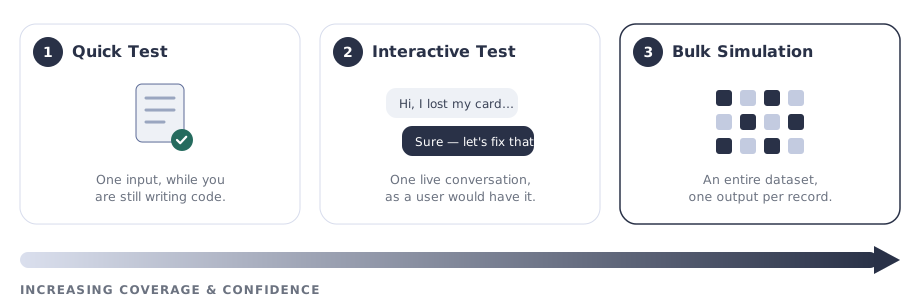
A fast sanity check while you are still writing the logic; it runs the code without saving.
Once saved, test the pipeline the way an end user would experience it.
A single input tells you the pipeline works; a bulk simulation tells you how it behaves across many real cases. It runs every row of a dataset through the pipeline, producing one output per record. Use it to:
This example fills in every field for a realistic chat-based pipeline that helps customers replace a lost card.
card_assistant| Field | Value |
|---|---|
| Description | “Conversational assistant that helps a customer report a lost card and request a replacement. Use for card-servicing chats; not for fraud disputes.” |
| Alias | card_assistant |
| Input Type | Python Function |
| Pipeline Type | Chat Based Pipeline |
| Context Type | dict[str, str] |
| Resources | kb (a RAG over the card-policy knowledge base), reply_prompt (a Prompt), chat_model (an LLM) |
# Retrieve relevant card-policy passages for the user's messagedocs = kb.search(user_message, top_k=3)  # (1)!
# Fill the prompt with the retrieved policy and the conversation so farfilled_prompt = reply_prompt(    user_message=user_message,    history=history,    policy_docs=docs,)
# Generate the replyreply = chat_model(filled_prompt)
# Track where we are in the flow so the next turn knows the# customer has already confirmed the card was lostupdated_context = dict(context)updated_context["stage"] = "replacement_offered"  # (2)!
return {"output": reply, "context": updated_context} # (3)!kb, reply_prompt, and chat_model are Resources added in Step 5. user_message and history are provided automatically.context["stage"] is available again — so the pipeline knows not to ask “did you lose your card?” twice.{"output", "context"} shape.A Free-Flow pipeline is simpler — no history, no context, and you define the output shape. For example, scoring the urgency of a support ticket:
# `ticket_text` is a Config argument defined via Add Configfilled_prompt = urgency_prompt(ticket=ticket_text)score = chat_model(filled_prompt)
return {"urgency": score}
A Classification pipeline returns one label from a set you predefine at registration. For example, routing an incoming support message to the right team:
# Allowed labels are predefined when the pipeline is registeredfilled_prompt = routing_prompt(message=user_message)label = chat_model(filled_prompt)  # one of: billing, technical, general
return labelIf a pipeline already runs in another environment, connect it to GGX instead of rebuilding it. On the New Pipeline page, set Input Type to External Agent and provide the agent’s API connection.
For example, an agent built in Vertex AI Agent Playbooks can be connected through its API. Integrations for common providers — Vertex AI Agent Playbooks, AgentForce, Microsoft Copilot Studio, Vapi AI, and others — are configured in the Integration Module, and new providers can be added by extending the framework.
Browse available integrationsEach pipeline has a dedicated Risk Assessment tab for documenting its assumptions, risks, and mitigations. Risks are recorded across several dimensions, and you can attach simulations as evidence of the testing performed.
These are example dimensions — the set is configurable and can be auto-detected from a pipeline’s configuration:
| Dimension | What it captures |
|---|---|
| Accuracy | How reliably the pipeline produces correct results. |
| Stability | How consistently it behaves across inputs and over time. |
| Ethics | Fairness, bias, and responsible-use considerations. |
| Vulnerability | Exposure to misuse, adversarial input, or failure modes. |
Registering a pipeline — rather than running a loose script — is what turns it into a governed, reusable asset:
| Capability | What you get |
|---|---|
| Change tracking | Automatic recording of modifications, with efficient version upgrades. |
| Purpose enforcement | Automatic detection of Permissible Purpose violations. |
| Testing & comparison | Evaluate against other pipelines using custom and standardized validation kits. |
| Reusability | Reuse across downstream applications, with visibility through Lineage Tracking. |
| Auditable path to production | A transparent, fully auditable journey with easier production monitoring. |
| Human Integrated Testing | Feedback logging and human-in-the-loop testing for chat-based pipelines. |
| Executable artifacts | Extract ready-to-productionize artifacts straight from the Registry. |
| Better collaboration | A shared base for continuous development and testing. |